Reading and Updating HighLevel Contact Fields with Cereba AI
Your Cereba AI can do more than talk — it can work directly with the contact fields you already use in HighLevel. The Contact Fields mapping lets you choose, field by field, what your AI is allowed to read for context and what it's allowed to update during a conversation. This guide walks through where it lives and how to set it up.
Where to Find It
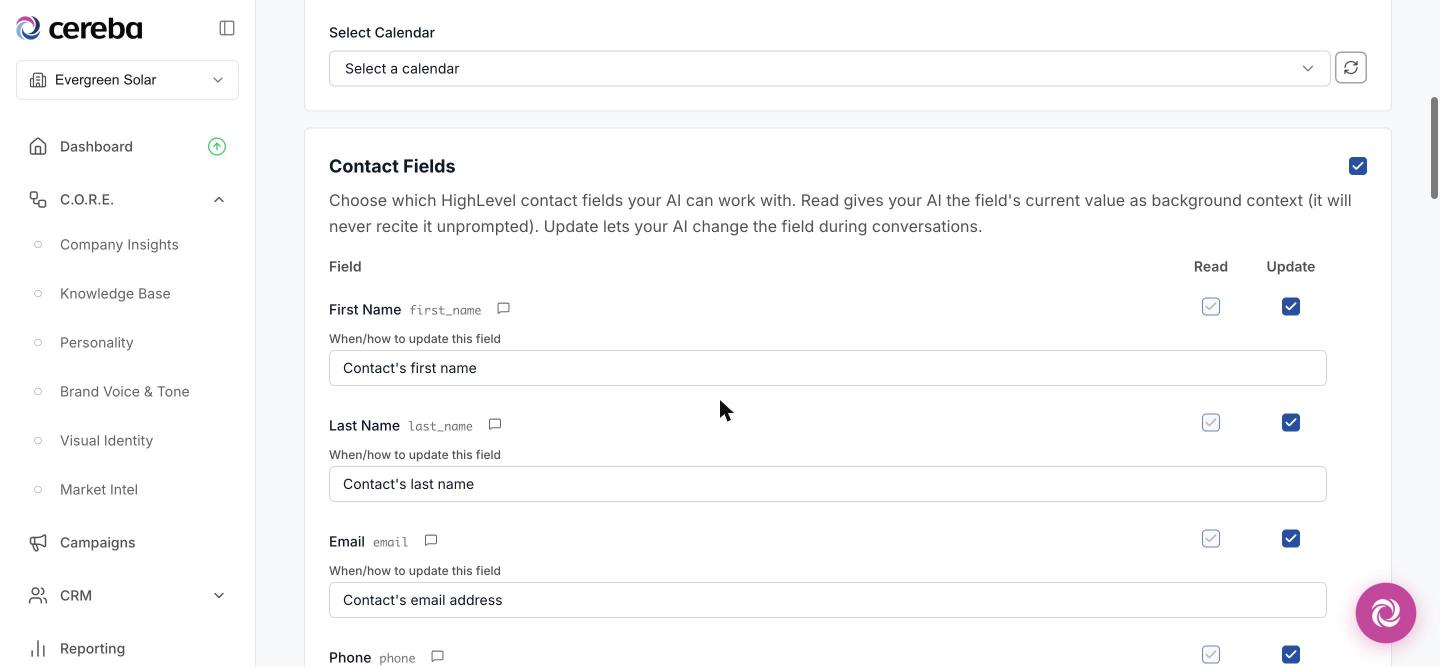
Open any campaign and go to the Intents tab. The Contact Fields card lists every contact field from your connected HighLevel account — the standard fields (name, email, phone, address, and so on) plus all of your custom fields, each shown with its field key. No typing field keys by hand: if the field exists in HighLevel, it's already in the list.
Note: the field list requires a connected HighLevel account. If you see the older manual field entry instead, connect HighLevel under Settings → Integrations.
Read vs. Update
Each field has two checkboxes:
- Read — your AI sees the field's current value as background context for the conversation. If your lead form already collected things like budget, interest, or whether they own their home, the AI walks into the conversation already knowing it — no re-asking. It uses this information naturally and will never recite it back unprompted.
- Update — your AI can change the field when the conversation calls for it. Checking Update also checks Read automatically (shown greyed out), because the AI needs the current value to update it well.
Values are pulled fresh from HighLevel on every message, so your AI always works with the contact's latest information — including changes made by your team or other workflows mid-conversation.
Guiding Your AI
Two optional text boxes let you steer how the AI treats a field:
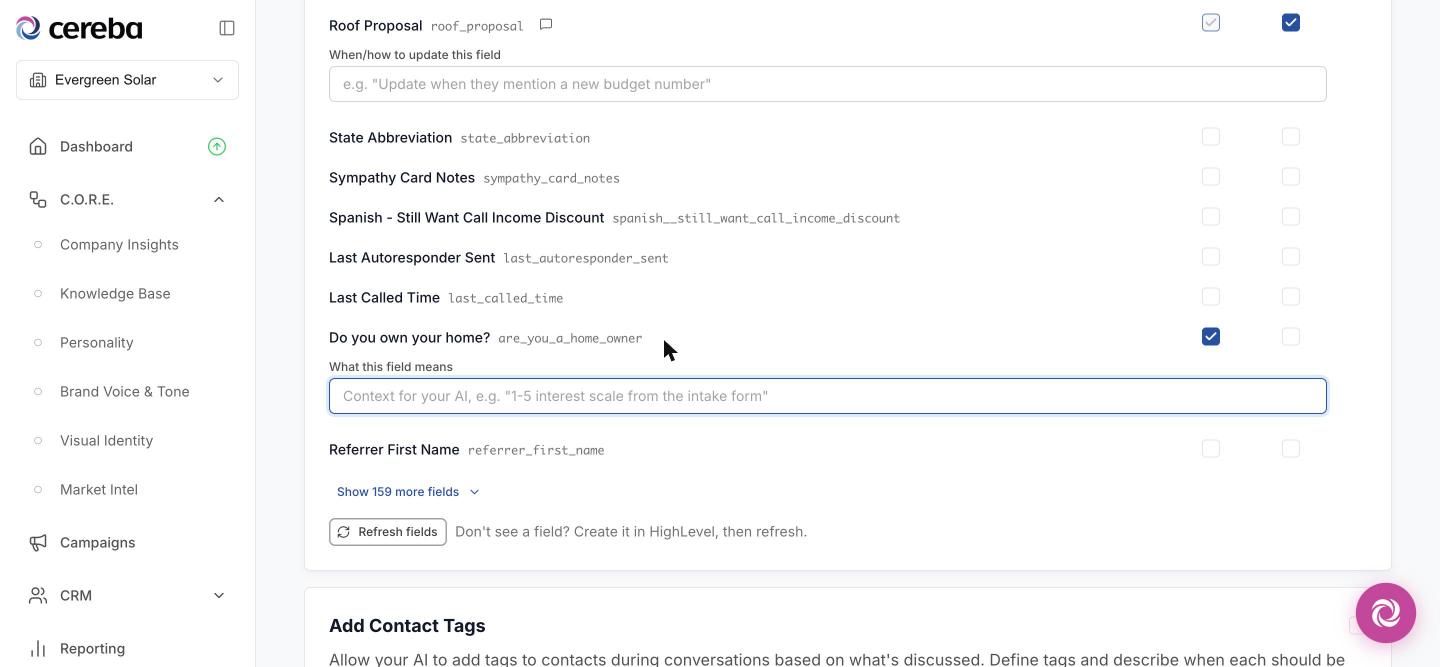
- What this field means — click the small note icon next to any checked field to add context, like "1-5 interest scale from the intake form." Only needed when the field name isn't self-explanatory; most form fields need nothing.
- When/how to update this field — appears whenever Update is checked. Tell the AI when a change is appropriate, like "Update when they mention a new budget number."
Working with Long Field Lists
Accounts with many custom fields stay manageable: the list shows your standard fields and anything you've configured, with the rest tucked behind Show more fields. Just created a new field in HighLevel? Hit Refresh fields and it appears in the list.
Saving and Going Live
Click Save at the top of the Intents tab to store your mapping, then Publish Changes to make it live. Until you publish, live conversations keep running on the previous configuration — so you can set things up safely at any time.
Quick Answers
- Seeing the old manual field entry instead of the list? The account's HighLevel integration isn't connected.
- A field is missing from the list? Create it in HighLevel first, then click Refresh fields.
- Worried the AI will read customer data back to them? It won't — read fields are background context only, used to avoid redundant questions and answer direct requests.
- Can a field be readable but protected from changes? Yes — check Read and leave Update unchecked. The AI cannot write to read-only fields.