Proactive AI Follow-Ups with Webhook Outreach Triggers
By default, your Cereba AI speaks when a contact messages it. The Triggers tab adds a second option: Webhook Outreach, which lets a GoHighLevel workflow tell your AI to proactively message a contact — a nudge, a follow-up, a check-in — using everything it already knows from the conversation so far. If the contact replies, the conversation just continues naturally.
Where to Find It
Open any campaign and go to the Triggers tab. You'll see two triggers:
- Contact replies — always on. When a contact whose Cereba Campaign ID matches this campaign sends a message, the AI responds.
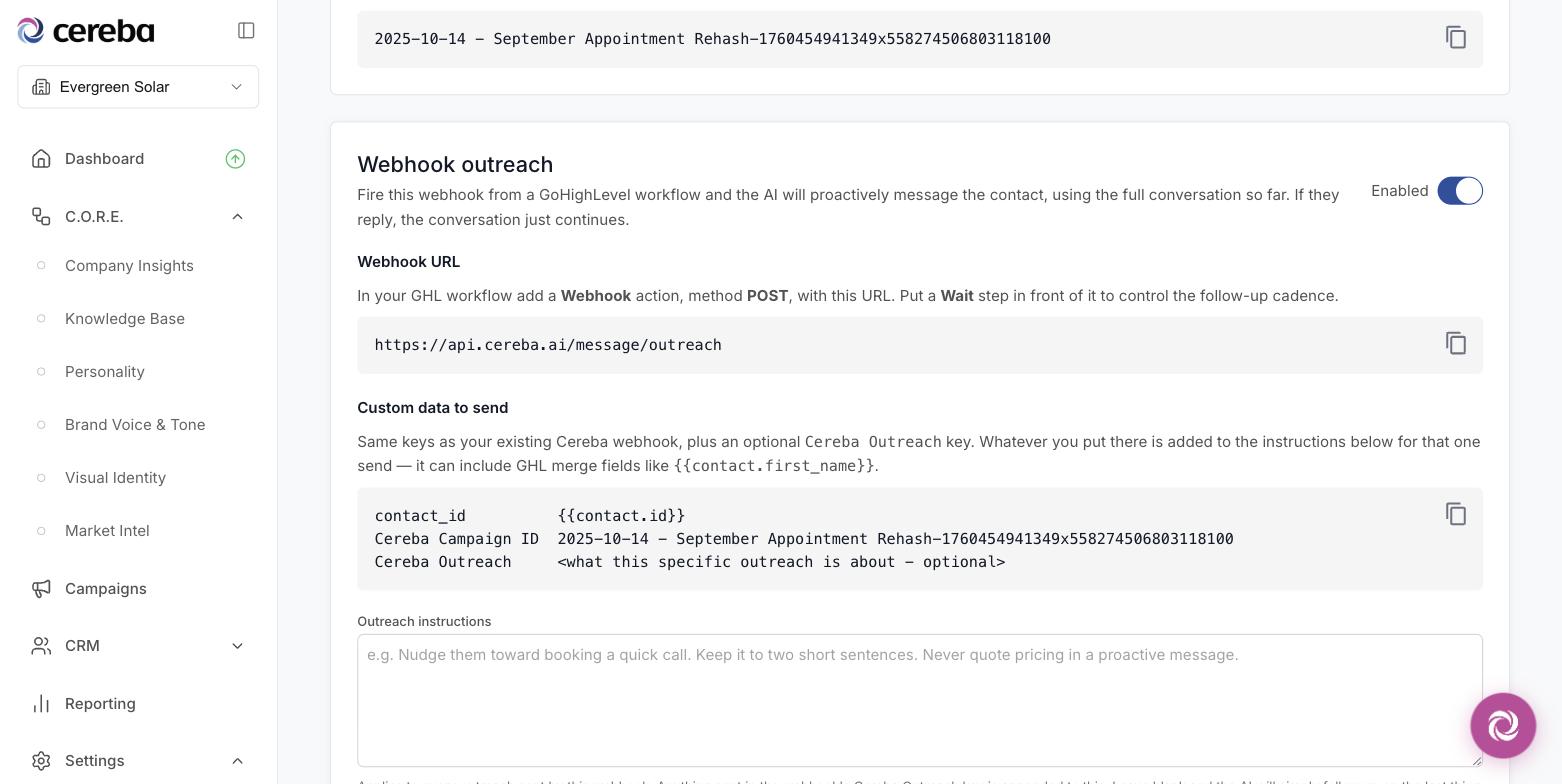
- Webhook outreach — off by default. Flip it on to reveal the setup below.
Setting It Up in GoHighLevel
In your GHL workflow, add a Webhook action with method POST using the URL shown on the tab. Put a Wait step in front of it to control the follow-up cadence — the webhook fires whenever the workflow reaches it.
The Custom data to send box gives you a copy-ready snippet: the contact ID, the campaign's Cereba Campaign ID, and an optional Cereba Outreach key. Whatever you put in that key is added to the AI's instructions for that one send — and it can include GHL merge fields, so a single workflow can send personalized nudges.
Outreach Instructions
The Outreach instructions box applies to every message this webhook triggers — for example, "Nudge them toward booking a quick call. Keep it to two short sentences." Leave it blank and the AI simply follows up on the last thing it said.
Max Attempts
Max attempts without a reply is the safety valve: after that many outreach messages with no response from the contact, further webhook hits are ignored until the contact replies. This keeps an aggressive workflow from ever spamming someone. The counter resets automatically the moment the contact writes back.
Saving and Going Live
Click Save Triggers, then Publish Changes to make the trigger live for the campaign.
Quick Answers
- Webhook fires but nothing sends? Check that the trigger is enabled and published, the contact's Cereba Campaign ID is set in HighLevel, and the max-attempts limit hasn't been reached.
- Which channel does the message go out on? The contact's existing conversation channel — the same one they've been messaging on.
- Does outreach know about earlier messages? Yes. The AI uses the full conversation history, so proactive messages pick up right where things left off.
- Can different workflows send different nudges? Yes — put workflow-specific context in the Cereba Outreach custom data key; it's applied for that send only.